Groupthink now works inside your AI assistant

Danielle Morrill
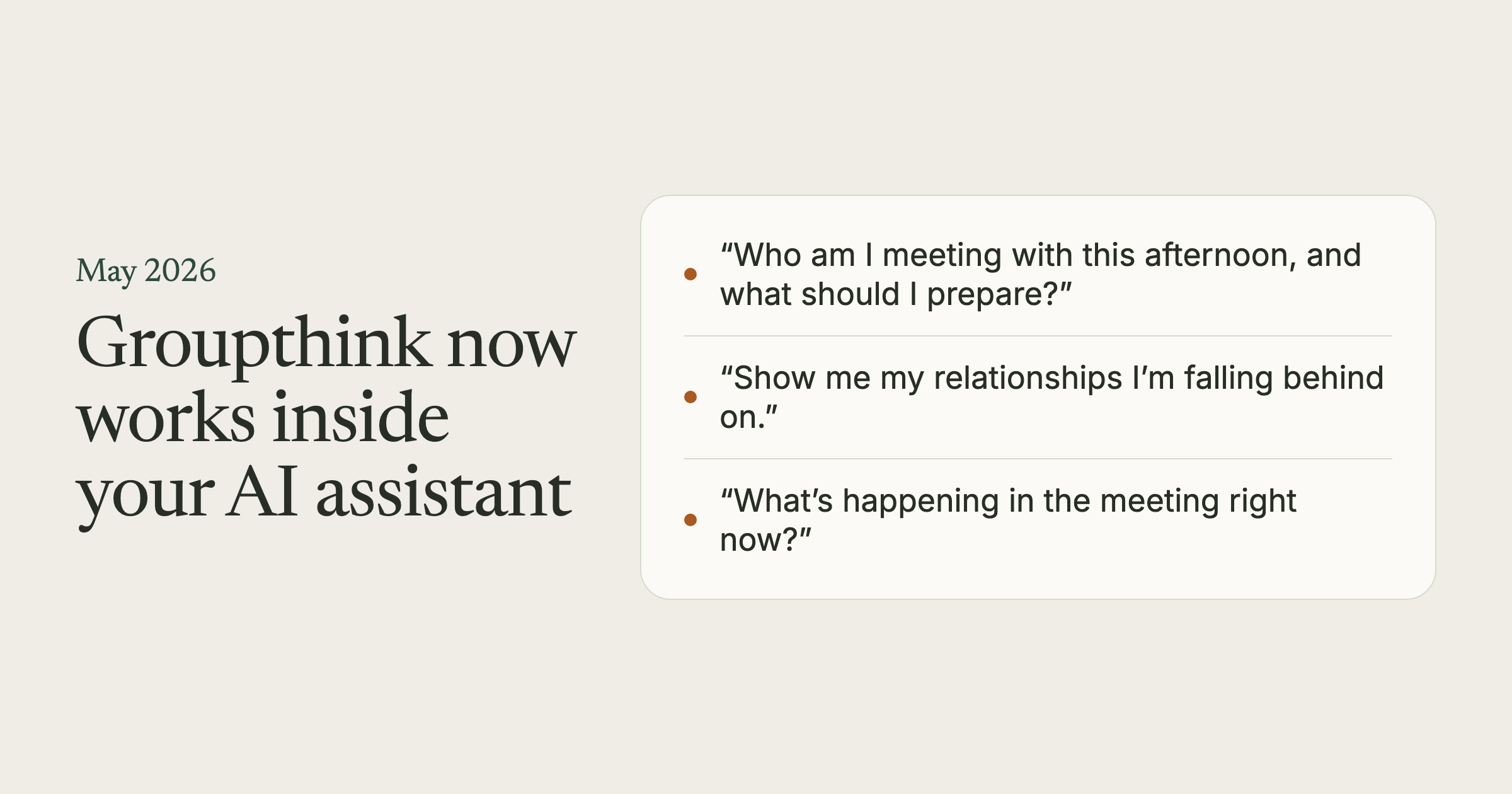
A new MCP server lets Claude Desktop, Claude Code, and Cursor drive Groupthink on your behalf, so the time you already spend on calls and in conversations does more work.
If you spend your day in meetings, the bottleneck on getting value out of them usually isn’t the meeting itself. It’s everything around it. Reading the prep doc. Remembering what the person said last time. Catching up on the call you missed. Pulling action items out of a transcript before they go stale.
Today, that handoff lives in an MCP server that connects Groupthink to whichever AI assistant you already use. Set it up in Claude Code, claude.ai, Claude Desktop, or Cursor. Once it’s connected, your assistant can drive Groupthink directly. You ask, in plain language, and the right thing happens.
What you can ask for
You probably already use your AI assistant for drafting and thinking out loud. The MCP server gives it a new kind of context: your actual relationships, your real meetings, your transcripts. So it can answer questions like:
- “Who am I meeting with this afternoon, and what should I prepare?”
- “Show me my relationships I’m falling behind on.”
- “What did Dana and I agree on when we talked about pricing last month?”
And on the live side, it can act on your behalf:
- “Send the Groupthink bot to this Zoom and tell me when it’s done what got covered.”
- “What’s happening in the meeting right now?”
- “Have the bot say ‘Sorry I’m running late, I’ll be there in five minutes’ in the meeting.”
Paused for now: following a live call from your assistant isn’t working right now. Your assistant can still read the recap and transcript after a meeting, for meetings Groupthink joined from your calendar or that you recorded with the desktop app. Details are in the MCP server docs.
What It Does
Live meeting participation (paused for now, see above). Your assistant can send the Groupthink bot into a Zoom, Google Meet, or Microsoft Teams call. While it’s there, your assistant can read the running transcript, post chat messages, have the bot speak text out loud, save notes back to Groupthink, and pull the bot out when you’re done.
Relationship intelligence. Your assistant can list your relationships, look up a specific person, search your contacts, surface who you’re falling behind on, pull the next meeting’s attendee context, and save free-form notes back to a relationship. The same intelligence you see inside the Groupthink app, available wherever you talk to your assistant.
The full tool list with example prompts is in the MCP Server docs.
How to try it
You’ll need a Groupthink account and an AI assistant that can connect to an MCP server, such as Claude Code, claude.ai, Claude Desktop, or Cursor. You connect by signing in to Groupthink. There is no token to create or copy.
- In Groupthink, open Settings, then Agents & MCP. Under Connect an agent, pick the tab for your assistant and copy what it shows.
- Add Groupthink to your assistant. In claude.ai or Claude Desktop, open Settings, then Connectors, choose Add custom connector, paste the address, and click Connect. In Claude Code, run the command in your terminal.
- Your browser opens on a Groupthink approval screen. Choose whether your assistant can read and write, or only read, and click Allow access.
Step-by-step instructions for each assistant are in the MCP server docs. Open a new conversation in your assistant and ask it something. The first time it calls a Groupthink tool, you’ll know it worked.