Share Your Availability
Share when you are free as text or as a booking link.
On this page
- Summary
- The Calendar & booking page
- Set When You Are Bookable
- Copy Your Next Open Times as Text
- Create a Booking Link
- Link Settings
- The Web Address Never Changes
- Share and Manage Your Links
- What Happens When Someone Books
- Reference
- When Your Calendars Change
- Known Limitations
- Frequently Asked Questions
- Related
- Getting Help
Groupthink can answer "when are you free?" two ways: as plain text you paste into a reply, and as a link someone else opens to put time on your calendar.
Summary
- Both read the same thing. Open times are computed across every calendar you have connected, so a dentist appointment on your personal calendar stops a client booking over it. You do not have to daisy-chain accounts or keep a second scheduling tool in step with the first. For the exceptions, see Does it look at all of my calendars?
- The fastest way to share your times is the sidebar. Click New at the top of the left sidebar and choose Copy my open times. It works from every page, and there is nothing to set up first.
- Working hours and booking links live on one page, Calendar & booking, under Today in the left sidebar.
- Each booking link has its own web address that never changes. When someone books, the meeting is created on your calendar and the person who booked becomes a relationship in Groupthink.
- What happens when your calendars change, known limitations and the FAQ are in Reference.
The Calendar & booking page
To open the page, click Calendar & booking under Today in the left sidebar, or go to app.groupthink.com/today/calendar. The page has three sections, in this order:
- Booking links: the links you hand out so someone can book you.
- Availability: your working hours, the window booking links offer times inside.
- Calendars: the calendars Groupthink checks before it offers a time.
Older links to Scheduling or to the Availability section of Settings still work. They open this page.
Set When You Are Bookable
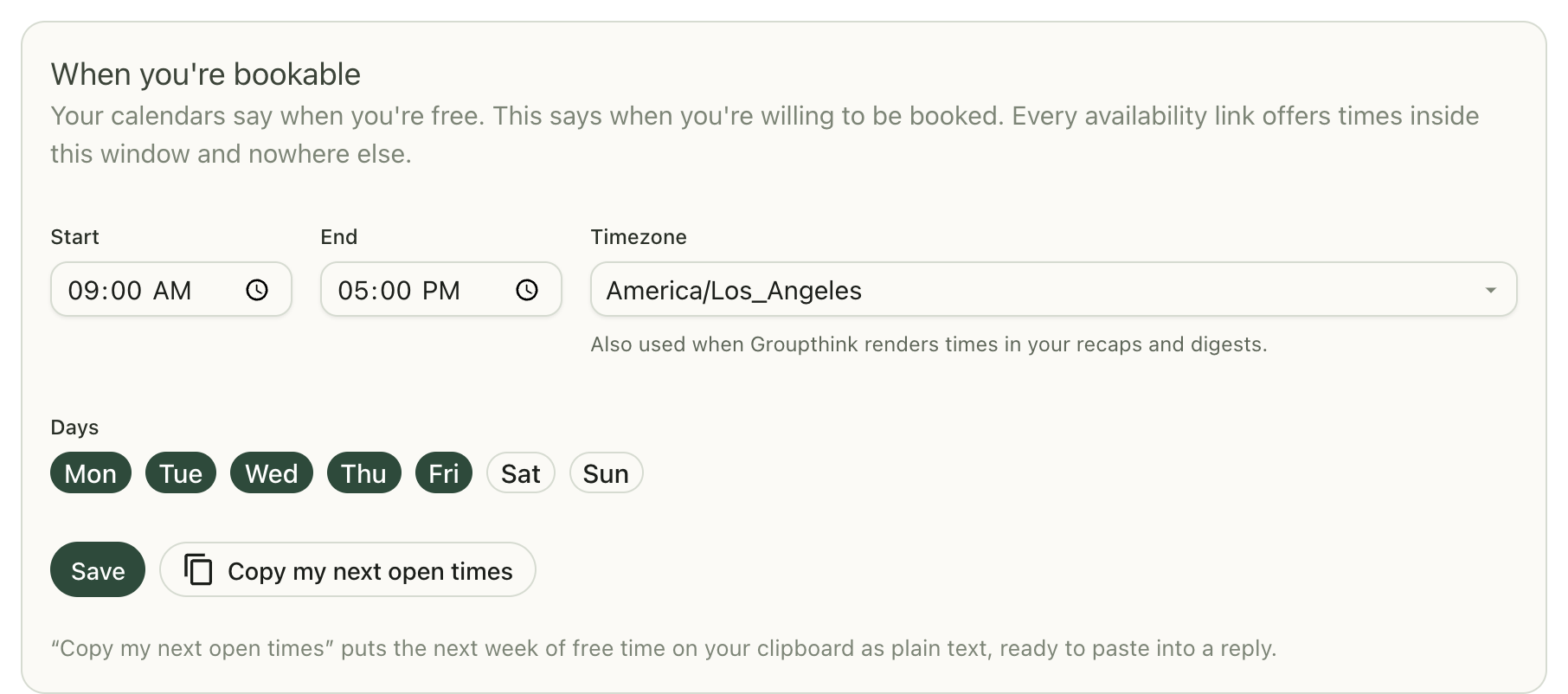
The card is When you're bookable, in the Availability section of Calendar & booking. Your calendars say when you are free. This says when you are willing to be booked. Every availability link offers times inside this window and nowhere else.
- Go to Today > Calendar & booking > Availability.
- Set a Start and an End time.
- Set your Timezone. Your working hours are read in this zone, and Groupthink also uses it when it renders times in your recaps and digests. On iPhone, the same setting is in the Settings tab under Time zone. See Settings on iPhone.
- Under Days, click the day chips to choose which days you are bookable. You cannot turn off every day.
- Click Save. A green Saved appears next to the button.
Copy Your Next Open Times as Text
Sometimes the right answer to "when are you free?" is a couple of lines in a reply, not a link.
From anywhere in the app, click New at the top of the left sidebar and choose Copy my open times. Groupthink puts the next week of free time on your clipboard as plain text, ready to paste. It reads like something a person would send:
Monday, Aug 17: 9:00–11:00am, 2:00–5:00pm
Tuesday, Aug 18: 10:00am–12:00pm
(times in PDT)
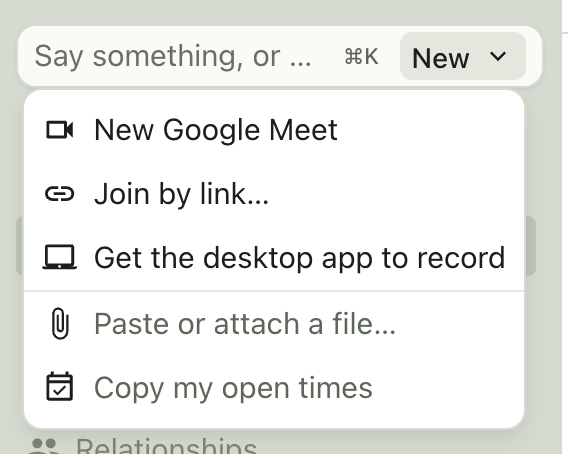
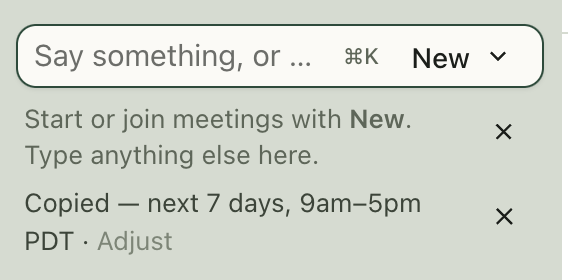
A line appears under the box saying what happened: the word Copied, then the window, your hours and your timezone, for example next 7 days, 9am–5pm PDT, next to an Adjust link that opens the working-hours card. The line goes away on its own after about ten seconds, or click the × next to it. If your hours look wrong in that line, click Adjust. That is the whole setup, and you only meet it after the copy, never in front of it.
The same action is also on the When you're bookable card as Copy my next open times, and copies the same text. On the card, the button itself reads Copied for a moment, and the no-open-times and no-calendar messages appear next to the button without an Adjust or Connect calendar link.
Two cases put nothing on your clipboard, and neither says Copied:
- No open times in the next week. The line reads No open times in the next 7 days, with Adjust right there to widen your hours or days.
- No calendar connected. The line reads Connect a calendar first so these are real times, with a Connect calendar link. With no calendar to read, nothing would block anything, and Groupthink will not hand out your entire working-hours window as if it were free time.
Copy my open times uses one fixed set of rules and does not read any of your links. It looks for 30-minute openings, no sooner than an hour from now, across the next 7 days, and writes out at most five days with up to four ranges on each. Your working hours, days, and timezone apply the same way they do everywhere else. For a specific link's rules, use Copy as text on that link's row on the Calendar & booking page instead.
Create a Booking Link
Booking links live in the Booking links section of Calendar & booking, under Today in the left sidebar. Each link is a named set of rules with its own web address that you can hand to anyone.
- Click Calendar & booking under Today in the left sidebar. Your links are listed first, under Your links.
- Click New link. If you have no links yet, the button reads Create your first link. If you have no links and no calendar is connected, the section asks you to connect a calendar first, and there is no New link button until you do.
- Give it a Name. This is what the person booking sees at the top of the page, so make it descriptive: "30-minute intro" rather than "link 2".
- Adjust the rest of the settings (see the table below), then click Create link.
Your new link appears in the list with its web address underneath it.
Link Settings
| Setting | What it does |
|---|---|
| Name | Required. The heading on the booking page. |
| Description | Optional. A sentence or two shown under the heading. |
| Length | How long the meeting is. Options run from 15 minutes to 2 hours. Defaults to 30 minutes. |
| Buffer | Time held clear either side of a booking. Defaults to None. |
| Minimum notice | How soon from now the first slot can be. Defaults to 4 hours. |
| Booking window | How far out times are offered, in days ahead. Defaults to 14, up to 60. |
| Start times every | The spacing between offered start times. Leave blank to step by the meeting length. |
| Most per day | A cap on how many bookings this link accepts per day. Leave blank for no limit. |
| Book onto | Which of your calendars the meeting is created on. Only calendars meetings can be added to are listed, so a calendar you can only view is not offered. Leave it on First available calendar if you do not care. Open times are still computed across all of your calendars either way. |
| Location | For meeting somewhere in person. Leave it blank for a video call. The text shows on the booking page and on the confirmation. Setting it does not switch Attach a meeting link off, so turn that off yourself for a genuinely in-person meeting. See the limitation below about what reaches the calendar invite. |
| Attach a meeting link | On by default. Adds a Google Meet link to the invitation when Book onto is a Google calendar. See the limitation below for Outlook. |
| Accepting bookings | On by default. Turn it off and the link stops working for anyone who opens it. |
Working hours, days, and timezone are not on this form. They are one setting for you, on the When you're bookable card in the Availability section just below your links, and every link honors them.
The Web Address Never Changes
Groupthink generates each link's address for you. You cannot choose it, and editing the link later never changes it. Rename a link, change its length, pause it and turn it back on, and every copy already sitting in somebody's inbox keeps working.
Share and Manage Your Links
Each link in the list shows its name, a summary of its rules, how many bookings it has taken, and its full web address. A summary line reads something like 30 min · 15 min buffer · 4 hr notice · 14 days out · 3 bookings. A link with Most per day set carries a max 2/day piece as well.
Each row has five actions:
- Copy link puts the web address on your clipboard. Paste it into an email, a message, or an email signature.
- Copy as text reads that link's current open times and copies them as plain text, the same paste-able format as Copy my open times but using this link's own rules.
- Edit opens the settings again.
- Pause stops the link working without deleting it. The row is marked Paused and the button becomes Resume. There is no confirmation step, so it is a safe thing to toggle.
- Delete removes it for good. Groupthink asks first, and warns you that meetings already booked through the link stay on your calendar.
If a link has no open times in its window right now, Copy as text puts nothing on your clipboard and does not say Copied. A line under the row says so instead, for example No open times in the next 14 days, so there is nothing to paste., and suggests widening the window in Edit or sending the link anyway, since the link keeps checking your calendar.
What Happens When Someone Books
The meeting is created on the calendar you chose under Book onto, titled with the link's name and the person's name (for example 30-minute intro and Dana Reyes, joined by a dash). You and they are both on the invite, and both of you are notified by the calendar provider. Whatever they typed under What's this about? is in the invite description, so read it there.
The person who booked also becomes a relationship in Groupthink, and the meeting sits on their record. That is the part a standalone scheduling tool cannot do: a booking is not a row in a separate app, it is the start of a relationship record that keeps building every time you talk.
For the whole picture of your side, see After Someone Books. For what the other person sees, see Your Booking Page.
Reference
The rest of this page covers what happens when your calendars change, the known limitations and common questions.
When Your Calendars Change
A link belongs to you rather than to one calendar, so it survives most of what you do to your connections.
- The calendar under Book onto is disconnected. The link keeps working. New bookings land on another of your connected calendars instead, an account's main calendar first. The link still points at the calendar that is gone, so Book onto shows nothing when you open Edit. A yellow note under it says the calendar isn't connected right now and names the calendar bookings are going to. Pick a calendar again if you care which one bookings land on.
- You can now only view the calendar under Book onto. Meetings can't be added to it, so new bookings land on another of your connected calendars instead. Open Edit and the same yellow note under Book onto says so and names where bookings are going. Pick a calendar you can edit.
- You disconnect every calendar. The link still opens, but nobody can complete a booking through it. They see a message that the link is not connected to a calendar right now. Connect a calendar and it works again.
- You connect another calendar. Its events start blocking booking slots straight away, on every link you already have. Nothing to re-configure.
- A calendar's account needs reconnecting. Groupthink stops updating that calendar, so the events it has from it are the ones it saw before the break. For the first 7 days those events still block time, so a real meeting is not offered as open. After 7 days they stop blocking time on your booking links and in Copy my open times. From then on, a time when you have a meeting on that calendar can be offered as open. Reconnect the account and its events block time again. See Reconnecting Your Calendar.
- The calendar under Book onto has needed reconnecting for more than 7 days. New bookings land on another of your connected calendars instead.
Known Limitations
- Cancelling and rescheduling are not on the booking page itself. The person who booked does both from the Cancel or reschedule button in their confirmation email. See After someone books.
- Moving a booked meeting on your calendar does not put the old time back on offer. Groupthink keeps holding the original start time against your links until that time passes. Deleting the meeting from your calendar does free it, once your calendar next syncs. See After someone books.
- Both of you get a confirmation email. Along with the calendar invite, Groupthink emails the person who booked (subject: "Confirmed:" followed by the link name and your name) and emails you (subject: their name, "booked", and the link name). You can turn off your copy in User Settings > Notifications. Their email has a Cancel or reschedule button they can use to cancel or pick another open time.
- No meeting link on Outlook. Attach a meeting link creates a Google Meet link, so it only does anything when the booking lands on a Google calendar. A booking on an Outlook calendar arrives with no video link. The booking page does not promise one in that case: with no Location set, it shows no meeting place at all. If you book onto Outlook, set a Location instead, or point the link at a Google calendar.
- Location does not reach a Google invite. The Location text shows on the booking page and on the confirmation the person sees, but it is not written into the location field of an invite created on a Google calendar. Put the address in the link's Description as well so it travels with the invite. On an Outlook calendar the location does reach the invite.
- A Location does not turn the video link off. The two settings are independent. Leave Attach a meeting link on with a Location set and a booking on a Google calendar gets both, and the confirmation page shows the video link rather than your address. Turn Attach a meeting link off for an in-person link.
- Live double-check on personal Microsoft accounts. Groupthink re-checks your live calendar before it accepts a booking, on Google and on Outlook work or school accounts. A personal Microsoft account (such as outlook.com) cannot answer that check, so for it Groupthink uses the calendar it has already synced, which can be a few minutes behind.
Frequently Asked Questions
Why does my link show so few open times?
Almost everything on your calendars blocks a slot, including holds written by other scheduling tools and multi-day events. The two exceptions are invitations you declined and events you marked Free. If you are coming from a tool like Reclaim or Clockwise, the holds it wrote still count as busy until you turn that tool off, so a link can show far fewer days than your working hours suggest. Open the calendars for that week and you will find something sitting on each missing day.
Do I need a booking link to share my availability?
No. Copy my open times in the sidebar's New menu works from any page, on its own, with no link and no setup at all. (The When you're bookable card on Calendar & booking has the same action as Copy my next open times.)
Does it look at all of my calendars, or just one?
All of them. Open times are computed across every calendar you have connected, across accounts and across providers. The Book onto setting only decides which calendar the meeting is created on.
The exception is a calendar whose account has needed reconnecting for more than 7 days. Its events stop blocking time until you reconnect it. See When Your Calendars Change. An extra calendar you added from one of your accounts and then switched off under Your Calendars does not block time either; see Keep your calendars in sync.
Can I have more than one link?
Yes. Make one per kind of meeting: a 30-minute intro, a 60-minute working session, an in-person coffee with a Location set.
Can I choose the web address?
No. Groupthink generates it, which is what keeps it stable when you edit the link later.
What if two people book the same time?
Only one of them gets it. The second person sees a message that the time was just taken and a refreshed list of open times to pick from again.
Does an invitation I declined still block a slot?
No. An event you declined is not a commitment, so it does not block the time. Neither does an event you marked Free. Everything else on your calendars does.
What if I have no calendar connected?
Booking links need one. With no calendar connected there is nowhere to put the meeting, so your booking page offers no times at all. A visitor who opens it sees that the link is not connected to a calendar right now, and is asked to get in touch with you instead. Copy my open times and Copy as text on a link's row do the same: they copy nothing and ask you to connect a calendar first.
This also covers a calendar whose connection has been broken for more than a week. Reconnect it and the page shows your open times again. Connect a calendar before you send a link to anyone.
Does marking an event Free open that time up for booking?
Yes. An event you marked Free (Free in Google Calendar, Show as Free in Outlook) does not block a booking slot, so a focus block or an all-day banner you left Free stays bookable. Calendar sync reads the same setting: a Free event does not get a placeholder written to your other calendar. See calendar sync.
Someone booked a bad time. Can I move it?
Move it on your calendar and reply to them, the same as any other meeting. Two things to know: the person can also move it themselves from the Cancel or reschedule button in their confirmation email, and moving the meeting on your calendar does not free the original slot on your links. See Known Limitations above.
Do I need to keep the working hours in sync with anything?
No. There is one working-hours setting and every link reads it.
Related
- Your booking page: what the person you send a link to sees
- After someone books: the meeting, the notetaker, and the relationship record
- Keep your calendars in sync: so a commitment on one calendar also holds the time on your other calendars
- Connect your calendar: connecting more accounts
- User settings: where you turn off the booking email Groupthink sends you
Getting Help
Questions about availability links? Email support@groupthink.com.